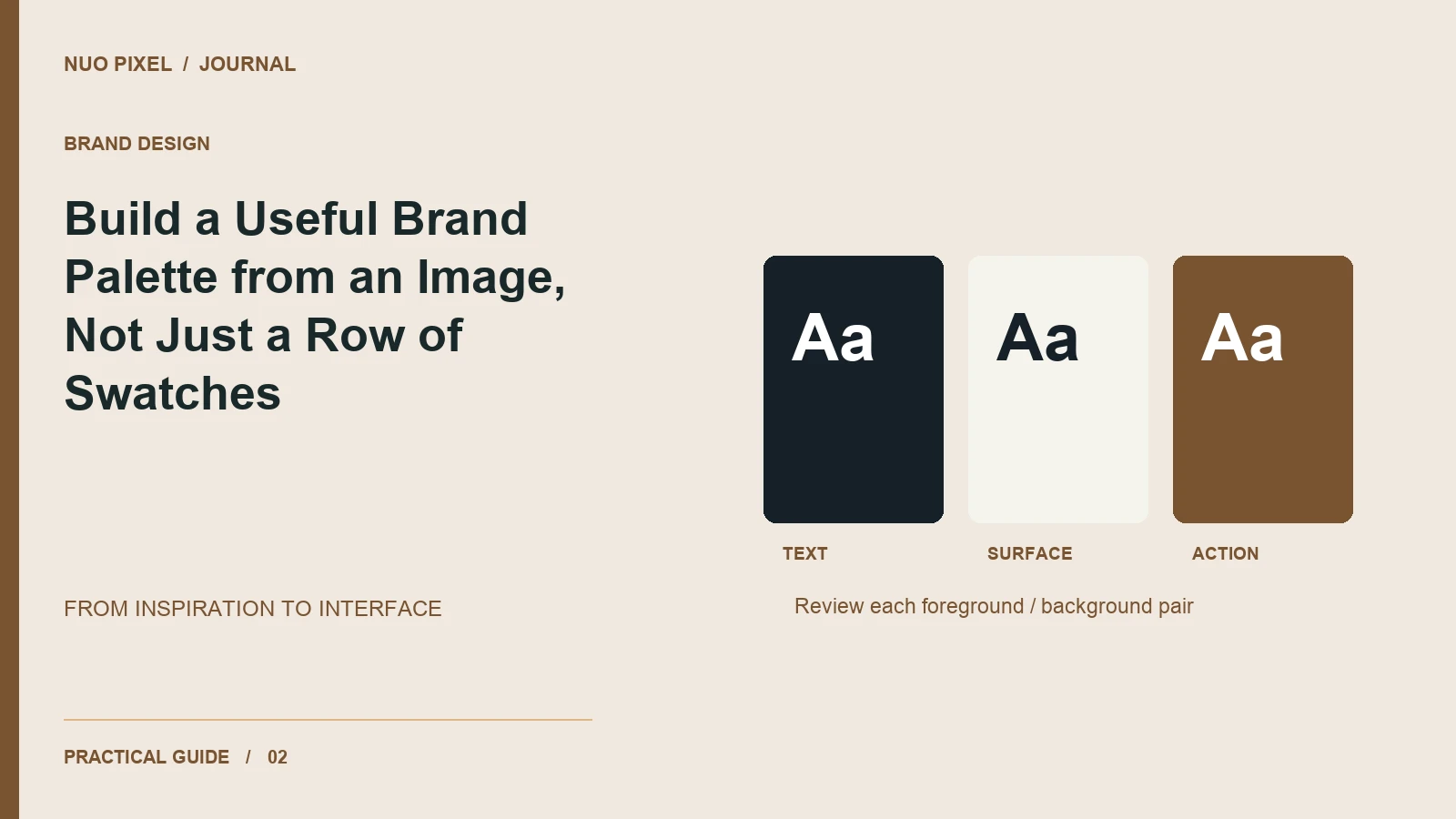
A color finder can give you a pleasing row of colors in seconds. Turning that row into a usable website palette takes a different kind of work. You need to decide which colors carry information, which provide atmosphere, and which combinations remain readable in the actual interface.
This Nuo Pixel Solutions walkthrough starts with an image and ends with a small set of named interface roles. The source image is inspiration, not an automatic brand strategy. A beautiful photograph can contain colors that are difficult to use for text, while a quiet neutral that looks unremarkable in the photograph can become the most useful color on the page.
The companion palette file and interface specimen are meant to make those decisions visible. You can replace the sample image with a photograph you own, extract a starting palette, and then adapt the roles to your own brand. Keep any source attribution with the exercise, especially if you share the result publicly.
Choose an image for a reason
Begin with the feeling or relationship you want to explore. An architectural image might suggest orderly surfaces and restrained accents. A close-up of fabric might offer a warmer, more tactile direction. A landscape may provide a useful relationship between a dominant neutral and a small area of saturated color.
Do not choose an image only because an automatic palette looks fashionable. Ask whether its visual character belongs to the organization and its audience. A serious service business may need a different balance of emphasis from an experimental art publication, even if both teams admire the same photograph.
Check your permission to use the image. Inspiration and redistribution are different activities. If the source is a private client photograph, do not include it in a downloadable public starter kit without permission. You can document the resulting role decisions without publishing the original image, or use an appropriately licensed sample for the public exercise.
Extract candidates, then reduce the noise
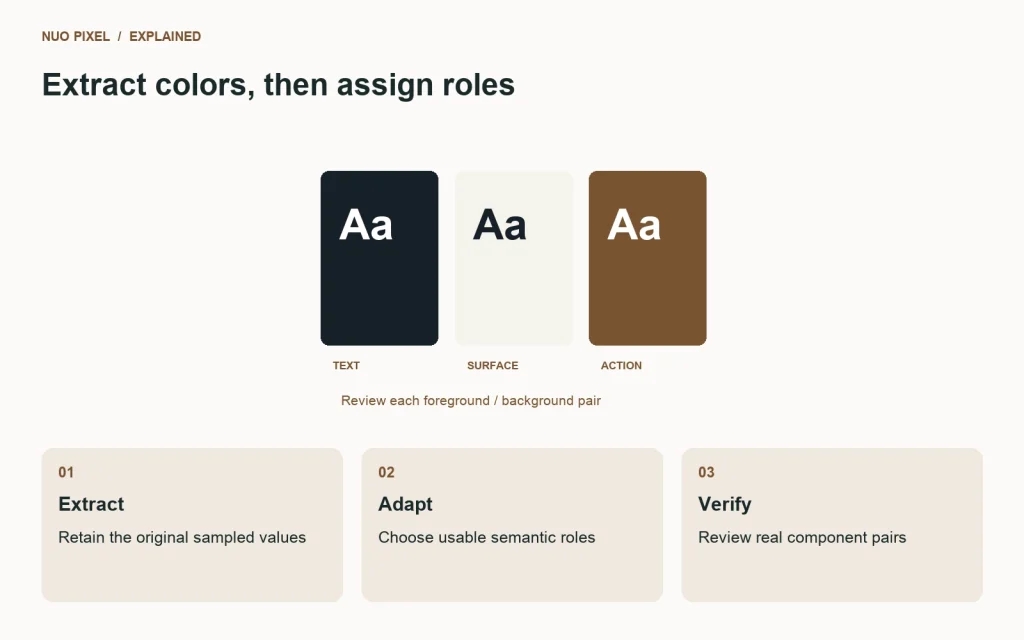
Open the image in the Nuo Pixel color name finder. Treat its output as a set of candidates. The most frequently occurring color is not necessarily the best action color, and a named color is not automatically an accessible text color.
Look for a small family of useful relationships: a dark tone, a light tone, a restrained middle tone, and perhaps one or two accents. If the image contains several almost identical greens, you do not need to preserve every one. Reduce the palette until each retained color has a plausible purpose.
Keep the original extracted values in a separate record. Then create an adapted palette for the interface. This makes the process honest: a darker green used for readable links may be inspired by the photograph without being an exact sampled pixel. Labeling it as an adaptation explains why it differs from the extractor’s output.
If the tool samples the whole image, experiment with a relevant crop. A small subject can be overwhelmed by a large background in an automatic result. A crop can reveal a different family of candidates, but record that choice instead of presenting the new palette as an objective description of the entire source.
Give the colors meaningful roles
A practical website palette needs more than an accent. Start with page surface, raised surface, primary text, secondary text, border, link, action background, action text, and focus. You can add status roles for success, warning, and error after the ordinary reading and navigation states are sound.
Use names that explain the job. A token called text-secondary tells a contributor where a value belongs; a token called beautiful-sand describes an impression. You may keep expressive names for the underlying palette, but the component-facing roles should be clear enough to use without remembering the source photograph.
Do not force every role to use a different extracted color. Several components can share the same foreground or surface. A small palette with disciplined roles usually communicates more clearly than a collection of unrelated swatches chosen to make a presentation board look varied.
Consider how the roles change together. If a button uses a dark accent background, its text role needs an approved foreground for that background. A border token should be judged against the surfaces it separates. A focus indicator must remain visible in the particular component state where it appears.
Test combinations rather than isolated values
Put the proposed text and background together in real components. Include a body paragraph, a link inside a paragraph, a button, an input label, an error message, and a selected navigation item. These examples reveal problems that a row of large color squares can hide.
Use a contrast calculation as one part of the review, and consult the relevant W3C contrast guidance for the criterion that applies to your situation. A successful text pairing does not automatically establish that focus, controls, charts, and the rest of the page are accessible.
If the original accent is too light for a text role, adjust it or use it somewhere else. You do not need to abandon the visual direction because one sampled yellow cannot serve as body text. It may work well as a decorative surface, a carefully controlled highlight, or a small part of an illustration.
Also inspect the page with enlarged text and on an actual phone. A color combination that is technically measurable can still be uncomfortable when used for long passages, very light weights, or text placed over busy imagery. Use the calculation to catch a problem; use the real component to understand the experience.
Build a small interface specimen
The companion specimen should be modest. A header, a short service introduction, two cards, and a contact field are enough to reveal whether the palette behaves like a system. Resist the temptation to build an elaborate dashboard just to make the colors look impressive.
Place the strongest emphasis on one meaningful action. If the specimen has five equally saturated buttons, you cannot tell whether the palette supports hierarchy. Give secondary actions a quieter treatment and confirm that they still look interactive. Decorative color should support the content rather than compete with every link.
Use realistic text. Long service names, a multi-line card title, and a short validation message create a more useful test than perfectly balanced placeholder labels. The point is to discover whether the palette survives ordinary publishing conditions, not to create a single flawless screenshot.
Try the same components on an alternate surface. A card that works on a warm page background may need a slightly different boundary on a white section. Document the approved relationship rather than letting each page invent a new gray border independently.
Separate brand expression from status information
A brand accent and an error color can happen to be similar, but they perform different jobs. Keep their semantic roles separate so a future brand refresh does not quietly change the meaning of validation messages. The same principle applies to success, warning, and selected states.
Never rely on color alone to explain an important status. Pair an error with a written explanation, a selected control with a clear state, and a chart series with labels or another identifying feature. A person who cannot distinguish two hues should still be able to understand the task.
If you introduce dark mode later, retain the role names while reviewing the values for the new surfaces. Do not assume the light-theme swatches can be inverted and reused unchanged. Your source photograph may still inspire both themes, but the functional relationships need their own review.
This is a useful place for a Nuo Pixel Solutions project brief to distinguish visual preference from operational requirements. “Warm and understated” describes a direction. “The form error must remain understandable without red” describes a behavior. A good palette supports both, and the design discussion should not collapse them into a single mood-board decision.
Make the palette usable by somebody else
Export more than a picture of the swatches. Provide machine-readable values and a short note describing each role. A simple CSS file can be enough for a small website; a JSON record is useful if several tools need to consume the same decisions.
Include the source values, adapted values, and approved pairings. Record any situations where a color should not be used. “Use this pale accent for backgrounds, not small text” is the kind of practical instruction that prevents an attractive palette from becoming a difficult interface several pages later.
Keep the specimen with the palette. A contributor can inspect how a value behaves in a button or field instead of inferring everything from the token name. If a value changes, update the specimen and review the affected components at the same time.
Version the files clearly. A shared file named palette-final.json is difficult to reason about after three people make different copies. A dated release note explaining what changed and why provides more value than another suffix on the filename. Small projects benefit from this discipline just as larger systems do.
Troubleshoot the result in context
If the page feels dull, do not immediately increase the saturation of every role. Check whether the layout has a clear focal point and whether the accent is being used deliberately. Sometimes the problem is hierarchy or imagery, not the palette itself.
If the interface feels noisy, reduce the number of competing accents. Look for repeated decorative surfaces that do not communicate a difference in meaning. When every card has its own colored background, visitors may spend effort interpreting a distinction that the content never explains.
If text feels weak, inspect its size, weight, and background together. If a logo looks wrong, review the asset variant rather than forcing the interface palette to compensate for a mark prepared for another surface. If photography clashes with the page, try a consistent surrounding frame before altering the colors of the source image.
If different team members keep choosing different values for the same role, improve the naming and examples. A palette is not successfully documented just because its hex values are available. People need enough context to make a consistent choice while building an actual page under time pressure.
Use the exercise to improve the next brief
After the specimen works, write a brief explanation of the result. Describe the source direction, the roles you created, the adaptations needed for practical use, and any combinations you rejected. This is more valuable than claiming that the image somehow revealed the brand’s only correct colors.
For a real Nuo Pixel Solutions engagement, the same record can support discussion with the client and implementation team. It makes the reasoning inspectable without inventing user research or promising a business outcome that has not been measured. The deliverable is a coherent visual starting point, with clear limits and a path to further testing.
Try the exercise with two different photographs and build the same interface specimen from both palettes. Compare how the hierarchy and tone change while the content remains constant. That experiment helps separate your response to the photograph from your judgment about the website, and it gives you a stronger basis for choosing the direction you will actually maintain.
Review the palette after real content arrives
A palette approved with a short sample headline may behave differently when the finished website contains long service descriptions, detailed diagrams, and varied photography. Revisit the specimen with that content before treating the colors as settled. Look for places where the accent competes with a warning, a surface obscures a diagram boundary, or a subtle label becomes difficult to notice beside a busy image.
Keep the review focused on specific uses. Instead of asking whether everyone still likes the green, ask whether the primary action is easy to identify and whether secondary text remains readable. If an exception is necessary, document its role and limits. That way the palette can accommodate real content without dissolving into unrelated color decisions on every new page. A small, understandable system is easier to maintain than a larger collection that only its original designer can explain.
Keep the approved specimen beside the palette files so future contributors can review the same examples.
Resources for this guide
Need help applying this to a website? Discuss the project with Nuo Pixel Solutions.
Continue learning
Want a Custom Designs for Your Brand?
Let NUO PIXEL craft design that defines your brand’s identity — creative, memorable, and made to stand out.
Contact NUO PIXEL Today