A contrast calculator is useful because it makes one relationship measurable: the difference in luminance between a foreground and a background. It becomes less useful when its result is treated as a certificate for an entire design, including states and content the calculator never examined.
The Nuo Pixel Solutions contrast workbench takes two opaque six-digit sRGB hex colors, displays a specimen, and calculates their ratio. It also shows whether that pair meets the listed normal-text and qualifying large-text thresholds. The tool is deliberately narrow so you can understand what it checks and combine the result with a sensible component review.
Use it while assigning palette roles, reviewing a button state, or checking an article’s secondary text. Keep the actual context beside the calculation. A color pair can be acceptable for one use and still be part of an interface whose labels, focus behavior, or visual hierarchy need more work.
Know what the two inputs represent
Foreground is the color of the text being evaluated. Background is the surface directly behind it. Enter the colors as complete six-digit values beginning with a hash, such as the examples already shown in the tool. The workbench does not accept shorthand values, named colors, transparency, or gradients.
These limits are intentional. A semi-transparent foreground is blended with what lies behind it, so the effective color is not necessarily the hex value copied from the stylesheet. A text label over a photograph can encounter several different background values across the same line.
If your component uses transparency, first establish the effective rendered colors for the relevant background, or use an appropriate tool that evaluates the actual composition. Do not enter only the unblended token and assume the ratio describes the final pixels.
Understand the result at its actual scope
The calculator converts the sRGB channels into a relative luminance value, compares the lighter and darker values, and displays the resulting ratio. Its normal-text threshold is 4.5:1, and its qualifying large-text threshold is 3:1. Consult the W3C contrast criterion for definitions, scope, and exceptions before applying a result to a particular situation.
A displayed pass for one threshold does not establish that all text sizes, weights, component states, or non-text elements meet every relevant requirement. It also says nothing about whether the wording is understandable or the control can be operated with a keyboard.
The workbench makes this limitation visible in its result. Keep that sentence with any screenshot you share. Cropping the number away from its explanation can make a useful check look like a stronger claim than the tool was designed to support.
Start with known reference pairs
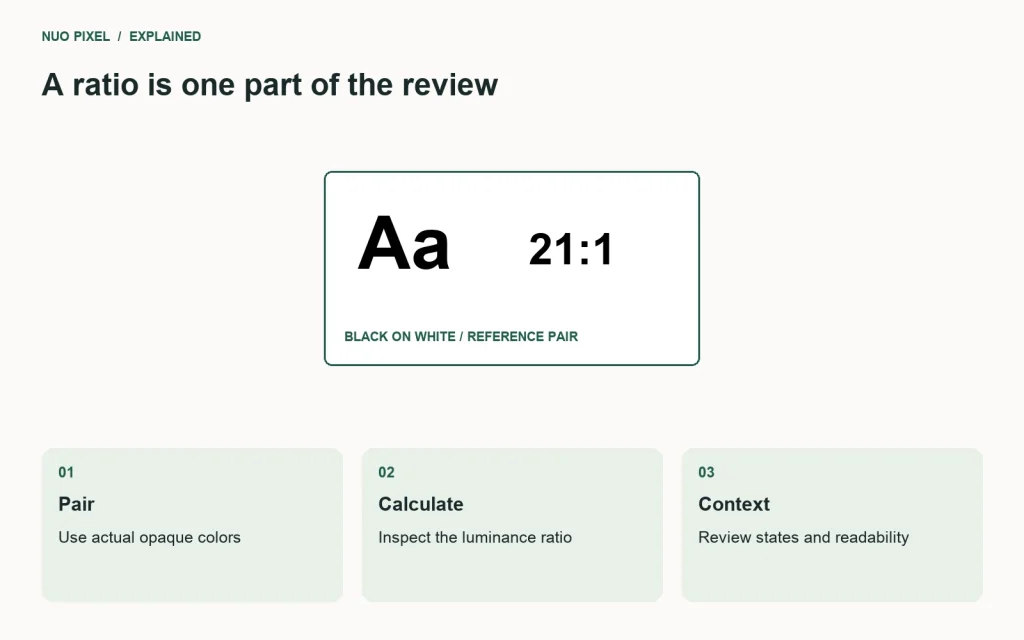
Use black on white as a simple reference case. The workbench reports 21:1. Use the same color for foreground and background and the result becomes 1:1. These examples help verify that the inputs and displayed specimen are responding as expected.
Then enter a pair from your actual interface. Compare the displayed specimen with the component on the page. If they do not appear to use the same colors, investigate transparency, overlays, inherited styles, or a different surface before relying on the calculator’s result.
Keep the values with your review note. A screenshot showing only “pass” can lose its meaning when the stylesheet changes. The foreground, background, intended role, and state identify what was evaluated and give a future contributor a concrete combination to recheck.
Do not adjust a color blindly until the number crosses a boundary and stop there. The ratio is one useful constraint. You still need to assess the component’s hierarchy, the reading context, and its relationship to the surrounding palette.
Review a paragraph rather than a giant swatch
Large color squares make a palette easy to present, but ordinary website text has different demands. Put the candidate pair into a paragraph, a small caption, a link, and a field label. These specimens reveal whether the intended role is comfortable and recognizable in the real layout.
Check the actual font size and weight. A very light typeface or tightly packed paragraph can remain difficult to read even when a color relationship reaches a listed threshold. Do not use the number as a reason to ignore obvious reading problems in the specimen.
Increase browser zoom and inspect a narrow layout. Make sure the text remains available and does not overlap another element. Contrast work should be part of a reading review rather than an isolated color exercise disconnected from the component’s dimensions.
For Nuo Pixel Solutions, this is a useful bridge between brand exploration and interface implementation. A color can be visually appropriate for the identity while needing a different role or an adapted value to work comfortably in a paragraph or control.
Check links within their surrounding text
A link has to be recognizable as interactive, not merely readable as text. Review its treatment inside a paragraph, including any underline or other persistent cue your design uses. A foreground/background calculation alone does not establish that somebody can distinguish the link from the surrounding words.
Check hover and focus states separately. A normal link color may work while a hover color becomes too faint or a focus indicator disappears against the same surface. The component needs a coherent set of states rather than one approved swatch reused without review.
Use descriptive link wording. A clearly styled “click here” can still be unhelpful when encountered outside its sentence. Color and content decisions work together; the calculator cannot repair a destination label that does not explain where the visitor will go.
If links appear over variable imagery, consider placing them on a controlled surface instead of trying to certify a single average photograph color. The relevant contrast is local to the rendered text, and the image may change when an editor publishes another article.
Review buttons as stateful components
Start with the default button text against its actual background. Then check hover, focus, selected, disabled, and loading states where the control supports them. Keep the meaning of each state clear and do not assume that a muted disabled appearance should be copied into a control that remains active.
A focus indicator has its own relationship to nearby colors. The text pair can pass while the keyboard focus is almost invisible. Review the complete control in the page, including borders and surrounding surfaces, rather than evaluating only the label’s token.
Use action labels that describe what happens. A button with excellent contrast but an ambiguous label can still leave a visitor uncertain. The workbench helps evaluate a visual relationship; it is not a substitute for clear language and predictable interaction.
Avoid making every button more saturated to solve hierarchy problems. Choose a primary action, provide quieter alternatives where appropriate, and verify that each remains understandable. Strong contrast everywhere does not automatically produce a clear order of importance.
Keep status colors separate from the brand accent
Success, warning, and error are semantic roles. They may use colors related to the brand palette, but they should not depend on a brand token whose meaning can change during a visual refresh. Keep the role names explicit and document their intended surfaces.
Pair color with a written explanation or another appropriate cue. An error border should not be the only indication that a field needs correction. A selected tab should have a recognizable state beyond a subtle hue change. A chart needs labels or another way to distinguish meaningful series.
Check the text associated with each status. A bright error surface can make its own label difficult to read, and a muted success message can become easy to miss. Review the complete combination in the place it appears, including any icon and recovery action.
Do not treat a grayscale screenshot as a complete simulation of every visual condition. It can expose a reliance on color alone, but it does not replace appropriate contrast calculations, component testing, or review with the intended audience where that is part of the project.
Adapt an image-derived palette deliberately
The photo palette resource keeps extracted values separate from adapted interface roles. Use that distinction when a sampled color needs adjustment for text or an action. You can preserve the visual direction without forcing every functional role to use an exact source pixel.
Test the candidate roles in the workbench, then in the interface specimen. A color that works on the main page surface may need a different role on a raised card or dark section. Record approved pairings so later contributors do not assume a text token works on every available background.
If you introduce another theme, review the role values again. A light-theme pass is not inherited by an unrelated dark background. Keep the names stable where the meaning is stable, but evaluate the actual combinations used in each presentation.
The result should be a small set of usable relationships, not an enormous palette where nobody knows which colors belong together. Clear documentation can prevent many failures before a calculator needs to be opened again.
Understand rounding and boundary cases
The workbench displays a rounded ratio for readability while evaluating the thresholds using the underlying calculation. Near a boundary, the displayed decimal may not communicate every internal digit. Avoid interpreting a rounded screenshot as a reason to disregard the actual reported threshold state.
When a pair sits very close to a limit, consider whether a little more margin would support the real component better. That is a design judgment about the intended reading context, not an instruction to alter every palette unnecessarily. A clear specimen is more useful than a contest to use the faintest possible permitted text.
Check that the colors you record are the ones delivered by the final stylesheet. A token override, inherited opacity, or theme state can change the composition after the initial palette review. Revisit combinations when shared styles change instead of treating an old pass as permanent.
The calculation assumes opaque sRGB inputs. If your workflow uses another color model or more complex compositing, use a method appropriate to that situation. Expanding the tool’s input box without expanding the underlying model would create false confidence rather than additional capability.
Keep a useful record of the review
For each important pair, record the component, state, foreground, background, ratio, criterion considered, and any additional checks. A small table can be enough. Link it to the specimen or release so another person can understand what was reviewed.
Keep failures in the working record until their replacement is verified. A note saying “color fixed” does not establish which value changed or whether the affected hover and focus states were checked. Clear records make maintenance easier when the website gains new pages and contributors.
Nuo Pixel Solutions can use the workbench as a focused tool within a broader design practice. It makes a measurable relationship visible, helps discuss tradeoffs, and supports consistent palette decisions. Its value grows when its limits stay visible too.
The practical next step is to choose one real paragraph, one link, one button, and one form error from your website. Check their actual pairs, inspect their states, and record the decisions. That small, complete review will usually teach you more than calculating dozens of isolated swatches without knowing where they will be used.
Work through a field-error specimen
Take a simple contact field with a visible label, a light input surface, a border, and an error explanation. Start by checking the explanation’s foreground against the surface directly behind it. Then inspect the field label and the text entered into the control. These can use different roles and should not be assumed equivalent merely because they appear close together.
Next, put keyboard focus on the invalid field. The focus indicator and error treatment need to remain understandable together. If one simply replaces the other, the visitor may lose either their current position or the indication that a correction is needed. Review the complete state instead of approving each color in isolation.
Finally, read the error without looking at its color. It should explain what to correct. This last step is outside the calculator’s arithmetic, but it is essential to the component’s usefulness. Record the pair and the behavior checks together so the next design revision preserves both the measurable relationship and the practical explanation.
Resources for this guide
Need help applying this to a website? Discuss the project with Nuo Pixel Solutions.