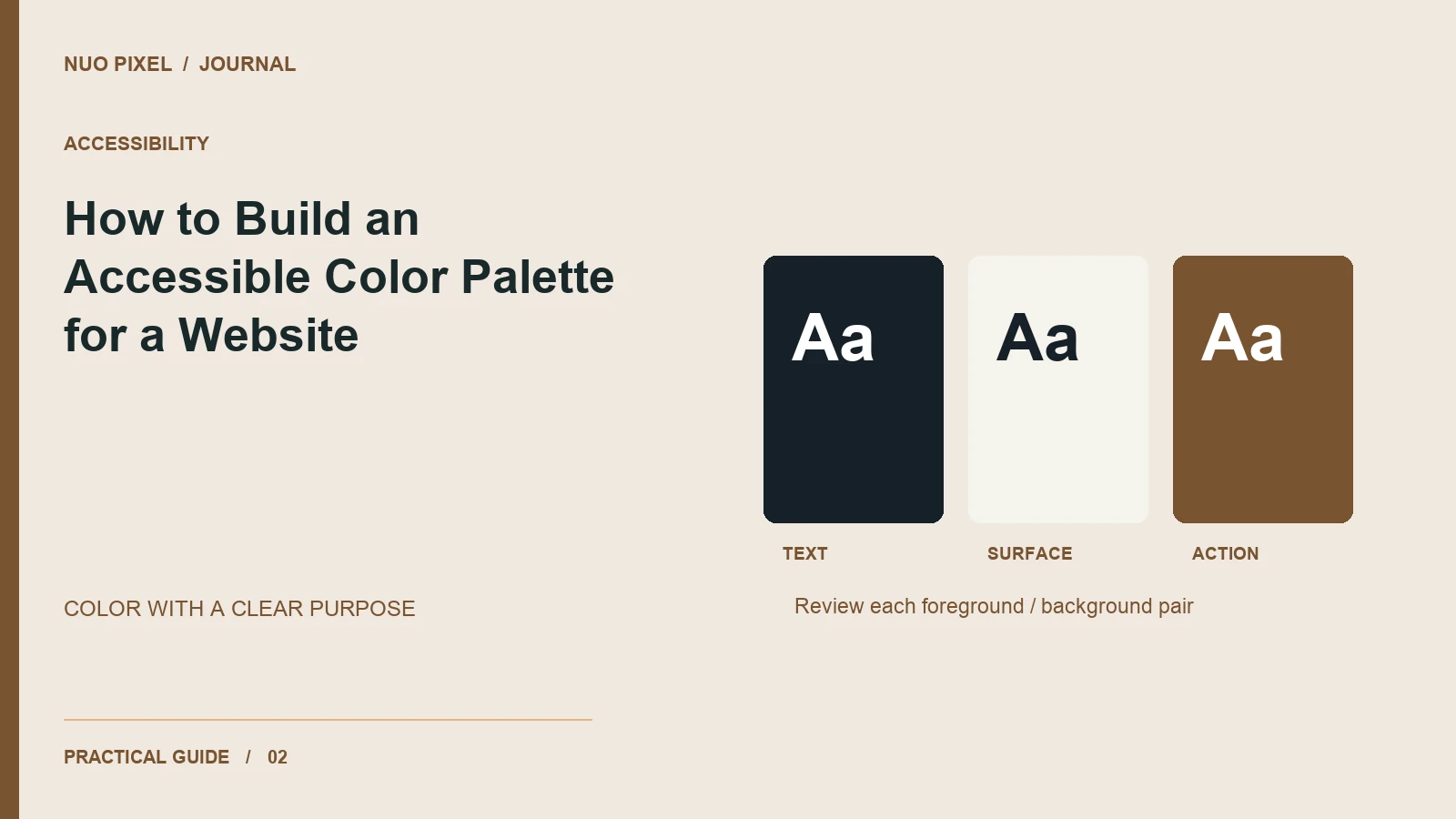
A palette can look beautiful in a presentation and become difficult to use in a real interface. A pale label disappears on white. A red error border becomes the only sign that a field needs attention. A selected tab looks identical to its neighbors when printed in grayscale.
Build your palette around combinations and meanings, rather than isolated swatches. The real unit of design is the foreground and background pair a visitor sees while completing a task.
Assign every color a job
Begin with text, surfaces, borders, links, focus, success, warning, and error. A brand color does not automatically work for every one of these roles. If your logo uses a light yellow, keep that yellow for suitable accents and choose a darker color for text links.
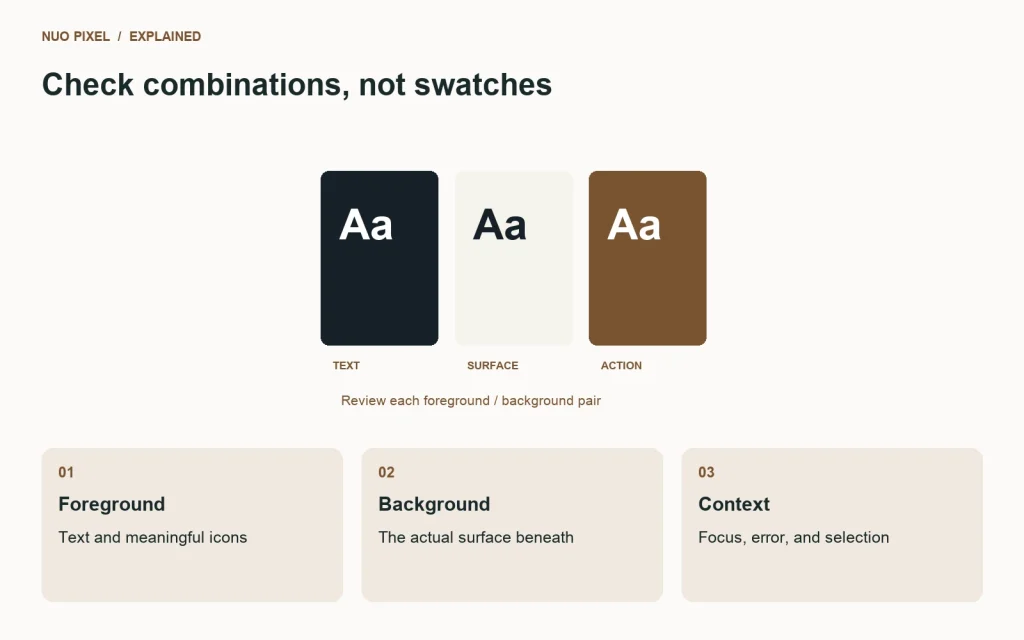
For ordinary text, WCAG’s minimum contrast criterion uses a ratio of 4.5:1; qualifying large text uses 3:1. Check the precise definitions and exceptions in W3C’s contrast guidance. Those thresholds are a baseline for specific text situations, not a certificate that an entire interface is accessible.
Test actual component pairs
Create a small review sheet with a body paragraph, button, input label, error message, and selected navigation item. Test each foreground against its real surface, including hover and focus states. Semi-transparent text can change its effective color when placed on another background, so do not rely only on the original hex value.
For example, an error field might use a red border, the text “Enter a valid email address,” and an icon with a text equivalent. The written explanation communicates the problem even when a visitor cannot distinguish the border color. A chart should likewise pair color with labels or patterns.
Separate expressive color from functional color
Keep decorative gradients away from essential small text unless you can verify the contrast throughout the text area. If photography sits behind a heading, use a controlled overlay or a solid text panel; a heading that works over one photograph may fail over the next.
Check the palette on a real phone in bright light and with browser zoom increased. Review a grayscale screenshot as a useful diagnostic, while remembering that grayscale alone does not simulate every visual condition.
Make the result reusable
Save the approved combinations as semantic tokens such as text-primary, surface-default, and status-error-text. Document which background each text token belongs on. Review any new component that introduces an untested pairing.
Try this: choose your site’s five most important actions, capture their normal and focused states, and verify that each remains identifiable without depending on color alone. Fix those states before expanding your palette with additional decorative colors.
Continue learning
Want a Custom Designs for Your Brand?
Let NUO PIXEL craft design that defines your brand’s identity — creative, memorable, and made to stand out.
Contact NUO PIXEL Today