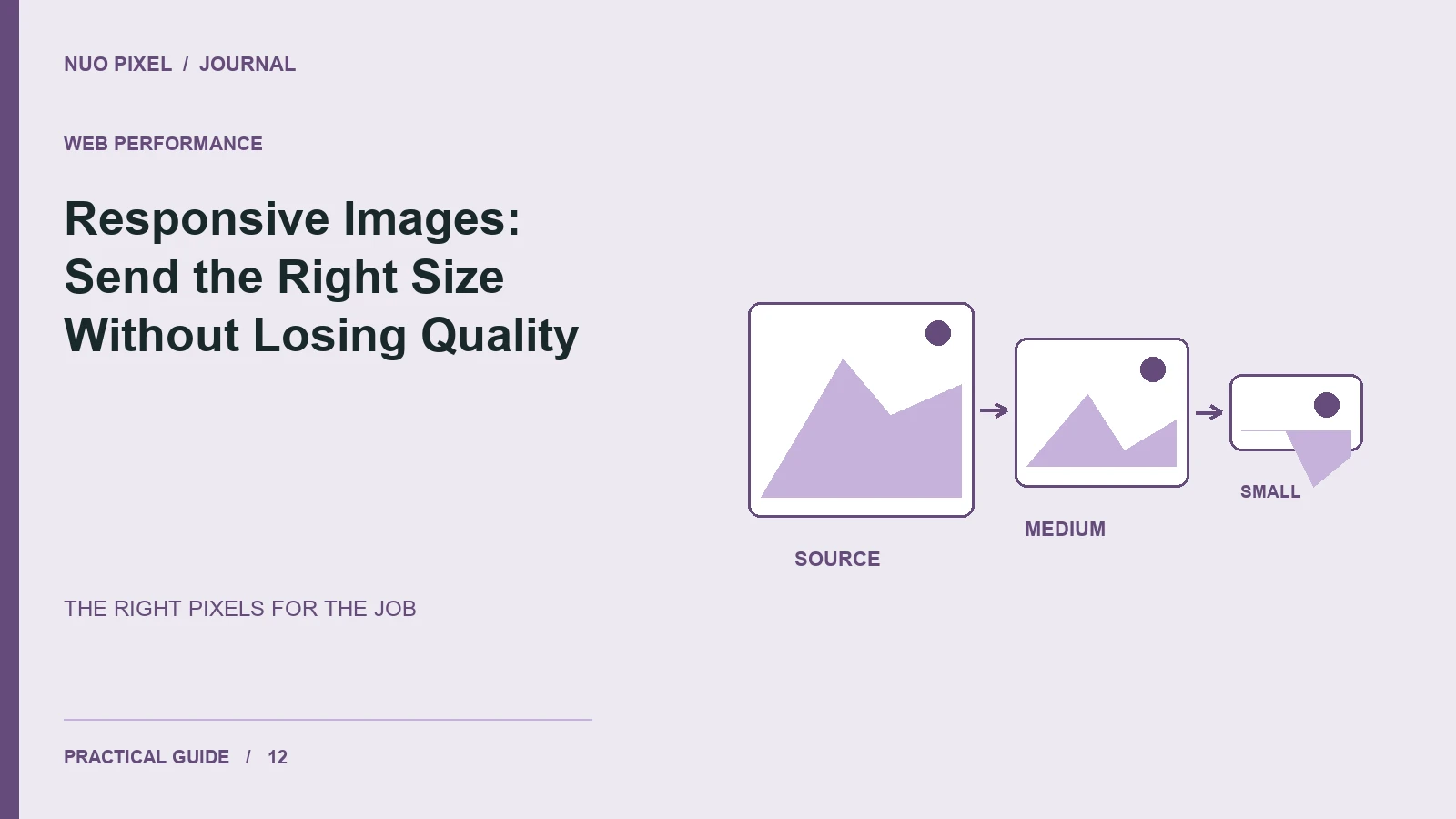
Uploading a large image is easy. Delivering an image that fits its display area, looks sharp, and avoids unnecessary transfer requires a little more planning. The right workflow begins with where the image will appear: a small article card, a wide hero, or an explanatory figure inside a post.
Do not use the same full-size file everywhere merely because it looks acceptable on your monitor. Start with an adequately sized source, generate suitable variants, and let the page describe its layout to the browser.
Match the image to its display role
A card cropped to 16:9 needs a composition that survives that crop. An instructional diagram containing labels may need its full frame preserved. Cropping the diagram to match a decorative card can remove the information readers need.
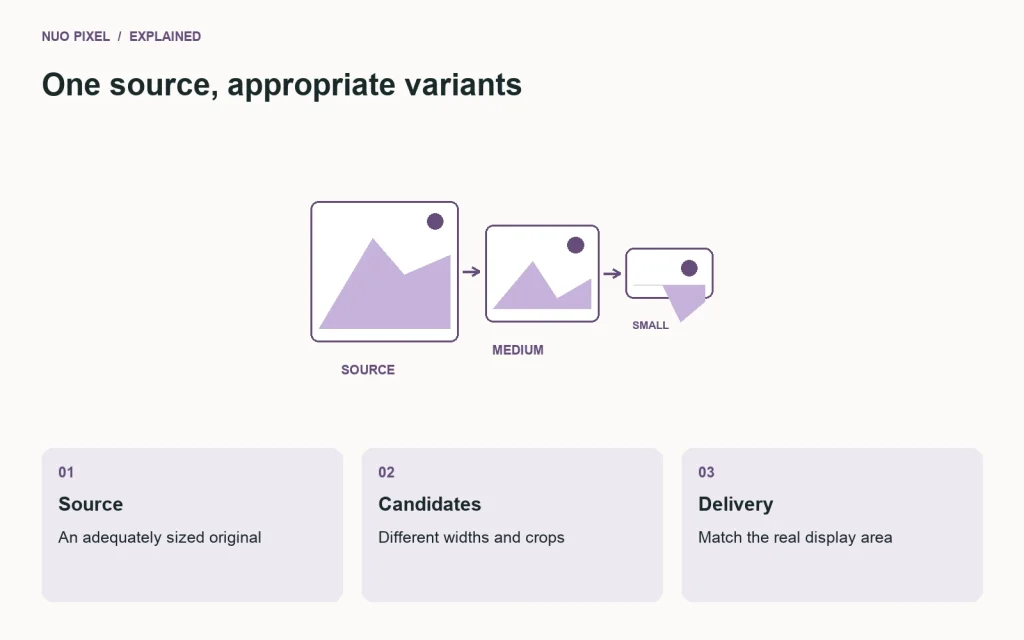
For responsive delivery, srcset offers image candidates and sizes describes the expected display width. Width and height attributes help reserve the correct aspect ratio. See web.dev’s responsive image guide for how those pieces work together.
<img src="guide-800.webp"
     srcset="guide-480.webp 480w, guide-800.webp 800w,
             guide-1280.webp 1280w"
     sizes="(max-width: 700px) 100vw, 800px"
     width="1280" height="720"
     alt="A diagram of three image sizes for one article">
The values must describe the real CSS layout. If the image sits inside generous side padding or a narrow column, account for that when writing sizes.
Choose loading behavior intentionally
Lazy loading is useful for images below the initial viewport. The prominent image a visitor is immediately waiting to see should usually be allowed to load promptly instead. Check what your CMS or theme adds automatically rather than assuming its defaults suit every image.
Compress with a visual review. Compare edges, gradients, and small labels at the actual display size. A diagram with tiny lettering can become difficult to read even when its file size looks impressively small. Keep the editable source so you can produce a better variant later.
Use WordPress’s media workflow
Register images in the Media Library and use the featured-image and attachment APIs where possible. This allows the CMS to generate sizes and responsive markup. Merely pasting an original file URL into a template may bypass those benefits.
Write alternative text for the image’s purpose. A photograph can have a brief description; a complex diagram may need its main explanation in nearby text. Avoid putting your entire article keyword list into the alt attribute.
Try this: inspect a blog card and an article image in your browser’s network tools at phone width. Confirm that the downloaded file fits the job, the layout reserves space before it loads, and the image remains understandable when its alternative text is used instead.
Continue learning
Want a Custom Designs for Your Brand?
Let NUO PIXEL craft design that defines your brand’s identity — creative, memorable, and made to stand out.
Contact NUO PIXEL Today