An SVG can look correct in a design application and still behave unexpectedly in a browser or image converter. The usual response is to export it again with a different checkbox selected. Sometimes that works, but it rarely explains the problem, and the same issue returns when somebody changes a font, a crop, or a destination.
This Nuo Pixel Solutions troubleshooting guide follows five common failures: missing lettering, clipped strokes, an unexpected background, excessive whitespace, and a raster export with the wrong dimensions. Each diagnosis starts by separating the editable artwork from the export file and the software displaying it. That separation makes a frustrating visual mismatch much easier to investigate.
The accompanying sample files are demonstrations, not client deliverables. Keep your original artwork untouched while you work through them. A fixed export is useful, but a repeatable explanation of why it needed fixing is what keeps a logo package reliable when it moves between people and tools.
First identify which stage changed the image
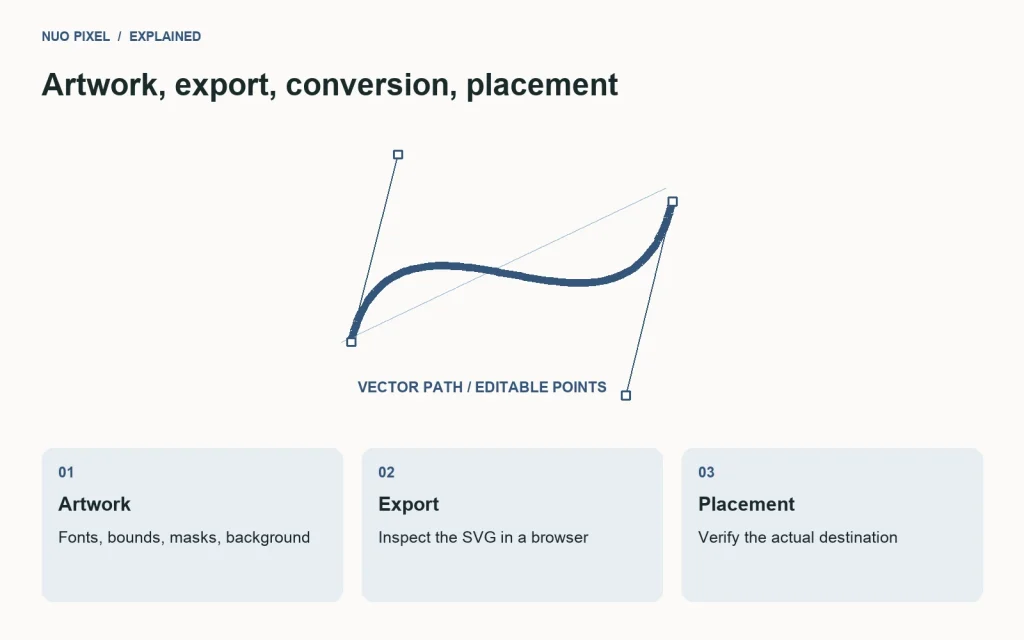
Open the exported SVG directly in a browser. If it already looks wrong there, investigate the export or the artwork it contains. If the SVG looks correct but the converted PNG does not, investigate the conversion settings and environment. If both files look correct alone but wrong on the website, inspect the page’s CSS, container size, background, and image treatment.
This simple sequence prevents unrelated changes. You do not want to reshape a logo to compensate for a page that is applying object-fit: cover inside a square container. Equally, adjusting a container cannot restore a font that was never included or converted into the delivered artwork.
Keep screenshots of each stage with the filenames visible. A visual note identifying the first stage that differs is often enough to make a support conversation productive. Without it, several people can spend time discussing different versions of what they all call “the logo.”
Problem one: the lettering changed or disappeared
SVG artwork can contain text that depends on a particular font being available. A design application may have that font installed while the browser or conversion environment does not. The result can be a substitute typeface, altered spacing, or a composition whose words no longer fit the intended area.
Inspect whether the exported file contains text or vector outlines. If the deliverable needs to reproduce a fixed brand mark without relying on an installed font, an outlined version may be appropriate. Preserve a separate editable master so future changes do not require reconstructing the lettering from paths.
Do not outline every document automatically. Text in a diagram can benefit from remaining text in the right workflow, and a complex outlined graphic can become larger and harder to edit. Decide based on whether the words form fixed artwork or information that should remain editable and accessible elsewhere.
Check permission and licensing before embedding a font file in a package. Having a desktop font installed does not automatically mean every form of redistribution is allowed. When the licensing position is unclear, use an approved workflow rather than treating a successful local export as permission to distribute the font.
To confirm the diagnosis, open the SVG in an environment without the source font and compare it with the outlined version. If the fixed artwork remains consistent while the live-text version changes, you have identified a dependency rather than an unexplained browser rendering defect.
Problem two: a stroke or shadow is clipped
A path can sit inside an artboard while part of its visible stroke extends beyond the export bounds. Effects can extend further still. If the SVG’s viewing area does not include the complete visible result, the edge may appear cut off even though the editable object seems to fit.
Temporarily remove the effect or reduce the stroke in a copy. If the clipping disappears, inspect the relationship between the artwork’s visible bounds and the exported viewing area. Expand the bounds deliberately or revise the effect rather than adding random padding to every placement on the website.
Check for clipping paths and masks. An accidental mask can make an export look like an artboard problem when the real cause is a retained editing object. Turn suspected masks on and off in a copy and observe which pixels return. Keep the intended mask documented if it is part of the composition.
Test the corrected file at its actual display size. Adding a large amount of empty space may technically stop clipping while making the logo look much smaller in the header. The solution should preserve both the complete artwork and a predictable relationship between the file bounds and the visible mark.
For the Nuo Pixel website, a header logo is judged in the header, beside its navigation controls. A successful standalone browser preview is necessary but not sufficient. Check the delivered mark in the real layout before declaring the clipping issue resolved.
Problem three: the background is wrong
A transparent-looking canvas in a design application does not necessarily mean the export contains transparency. A white rectangle may be part of the artwork. A checkerboard may be a preview aid, or it may have been imported as actual pixels. Distinguish the document background, visible shapes, and transparency display.
Place the SVG over a dark surface in your browser or specimen page. If a white rectangle appears, inspect the artwork for a background shape. If that shape is intentional, keep it and describe the correct use. If it is accidental, remove it in the editable source and export again.
When converting to a raster format, check the destination’s capabilities. JPEG does not preserve an alpha channel. If you need a transparent result, choose a suitable format and verify the actual file. Renaming a JPEG with a different extension cannot create transparency that its encoded pixels do not contain.
Also inspect partially transparent edges. A logo can appear to have no solid background while retaining a pale fringe from an earlier raster source or flattened effect. Preview it against the surfaces where it will be used. If the fringe is embedded in raster pixels inside the SVG, changing the outer file extension will not repair it.
Use a dedicated on-dark variant when the brand requires one. Inverting every pixel with CSS can alter colors and produce an unintended mark. A prepared variant, reviewed by the designer, makes the intended contrast explicit and keeps the website from becoming the place where the brand artwork is improvised.
Problem four: the logo has too much whitespace
The visible mark may occupy only part of the exported viewing area. When a browser sizes the file, it sizes the whole area, including the empty space. This can make one logo look smaller than another even when both image elements have the same declared height.
Look for stray points, hidden experiments, and an artboard inherited from a much larger composition. In a copy, select the intended artwork and compare its bounds with the export bounds. Remove accidental objects and set a deliberate viewing area around the final mark.
Do not remove intentional clear space without understanding the brand rules. Some packages deliberately include a protective margin. If that is the case, document it and use consistent packaging across variants. The problem is not whitespace itself; it is whitespace whose purpose is unclear and whose amount changes unpredictably between files.
Compare the primary, compact, and reversed variants in the same browser specimen. Their visible proportions should make sense at the intended sizes. A compact icon may need a different viewing area from a horizontal wordmark, but both should have clearly documented usage rather than relying on arbitrary negative margins in CSS.
If the website already contains compensating transforms or offsets, revisit them after fixing the asset. A corrected file placed inside old compensation rules can look wrong in the opposite direction. Remove the obsolete workaround and test the layout again with the approved asset package.
Problem five: the converted image has the wrong dimensions
An SVG’s internal coordinate system and its requested raster output dimensions are related but different. A converter needs to decide how many pixels to generate and how to fit the artwork within them. If you request incompatible width and height values without preserving the ratio, you may stretch the result or create extra space.
Start by recording the intended aspect ratio and the destination’s dimensions. For a header mark, you may care primarily about height while preserving the ratio. For a social preview or document slot, you may need to place the mark inside a fixed canvas with deliberate surrounding space.
Check the downloaded file’s actual pixel dimensions after conversion. A control displaying a requested width is not proof that the generated file used that width. Decode the output, inspect its format and size, and verify that the download name matches the content.
Use the Nuo Pixel SVG converter when it fits your workflow, then inspect the output in context. Browser-based convenience does not remove the need to verify fonts, effects, backgrounds, and dimensions. The source SVG can carry dependencies or structures that a particular conversion path handles differently.
For a high-density display, plan an adequate raster size without sending an unnecessarily large original to every placement. Keep the vector master so another size can be generated cleanly later. Repeatedly enlarging an already rasterized export is not equivalent to rendering from the original vector artwork.
A practical diagnosis sequence
Keep the sequence short enough to use under pressure. Confirm the filename and version. Open the SVG directly. Identify whether the mismatch concerns content, bounds, background, or raster dimensions. Change one relevant variable in a copy, export, and compare the same area again.
If several things are wrong, solve the dependencies first. Missing lettering can change the artwork’s bounds, so fix that before fine-tuning the surrounding margin. An accidental background shape can obscure transparency, so identify it before evaluating the converter’s alpha output. This order reduces the chance of repairing symptoms while preserving the cause.
Use an issue note with four fields: expected appearance, actual appearance, first stage where they differ, and the change that corrected it. Add a screenshot or small sample when it helps. A clear note is more useful than a long list of export settings with no explanation of which one mattered.
Package the correction for the next person
Deliver the editable source, the approved web SVG, any on-dark or compact variants, and the required raster outputs. Keep filenames descriptive and include a short usage note. If the web SVG has outlined lettering, say so. If the raster version is flattened onto a specific background, say that too.
Do not replace a shared file silently when its bounds or proportions have changed. A colleague may have designed around the earlier package. Explain the change and identify the placements that need review. The purpose of the correction is to make the system more predictable, not to move a visual problem into another person’s layout.
Nuo Pixel Solutions can use the same standard across website, portfolio, and client-facing assets: the artwork should arrive with enough context that its recipient can place it correctly without guessing. A reliable logo package is a small interface between teams, and its clarity matters as much as the precision of the curves inside it.
Know when the format is not the right container
An SVG is not automatically the best delivery format for every visual. A file filled with embedded photographs and elaborate effects may behave more like a complex document than a simple scalable mark. Consider whether a raster export or a simplified diagram better serves the actual destination.
For essential written instructions, keep an equivalent explanation in the page rather than relying solely on lettering inside the image. For unfamiliar uploaded SVG files, use an appropriate validation and sanitization process; the file is structured markup, not just an inert collection of colored pixels.
The aim of troubleshooting is not to make every viewer render every possible SVG identically. It is to prepare a dependable asset for a defined use, understand its dependencies, and give the next person a clear way to verify it. Once you can explain those three things, exporting stops being a sequence of guesses and becomes part of a maintainable brand workflow.
Resources for this guide
Need help applying this to a website? Discuss the project with Nuo Pixel Solutions.
Continue learning
Want a Custom Designs for Your Brand?
Let NUO PIXEL craft design that defines your brand’s identity — creative, memorable, and made to stand out.
Contact NUO PIXEL Today