An article card looks simple until an editor publishes a title twice as long as the sample, omits an image, or adds a word that does not break naturally. Then a tidy row becomes a collection of clipped headings, empty spaces, and reading links that no longer line up.
This Nuo Pixel Solutions walkthrough treats the card as a publishing component rather than a fixed picture. We will define its content, choose a meaningful HTML structure, add a responsive layout, and test awkward cases. The companion specimen and width workbench let you inspect the result without installing a framework or entering a build pipeline.
The design goal is modest and useful: help a visitor understand an article’s subject and choose whether to open it. Every field and visual treatment should support that decision. The card does not need to contain the whole article or display every piece of metadata available in the database.
Define the card’s content contract
Start with the required fields: a title and a destination. Decide whether the excerpt, image, category, date, and reading-time estimate are optional. Document what happens when each optional field is missing instead of leaving the implementation to improvise an empty placeholder.
Use representative content from the real collection. Include a concise title, a longer instructional title, a technical term, and an article without a cover. A perfectly balanced placeholder heading can conceal a layout that has no room for ordinary editorial variation.
Decide what the image contributes. A featured cover can give the listing a recognizable visual rhythm, but it should not be the only way to identify the subject. The visible title should remain useful when the image does not load or the visitor navigates through a list of links.
Choose a simple semantic foundation
An article element can represent a self-contained listing item. Put the title in an appropriate heading and make it a meaningful link. Keep the excerpt as text and use a time element when a publication date is shown. The exact heading level depends on the page that contains the card.
Do not choose heading levels solely for their default size. On a blog listing with a main page heading, article titles can form the next level in the outline. CSS can give them the visual size the design needs without changing their structural relationship.
Keep the source order sensible. The title, context, excerpt, and next action should make sense when read in sequence. A layout that relies on visually moving elements far from their document position can become confusing for keyboard or assistive-technology users.
Avoid wrapping an entire card in a link if it also contains independent controls or links. Nested interactions create an unclear structure. A clear title link, with an optional secondary reading link that has sufficient context, is often an easier foundation to understand and maintain.
Give the image a defined listing role
Choose an image ratio for the listing and prepare covers that work within it. A wide cover may crop predictably across a grid, while a portrait photograph may need an intentional focal position. Review the actual crop rather than assuming a centered crop preserves every important detail.
Use appropriate responsive image markup in the CMS. An article card rarely needs the largest original file at every viewport. At the same time, a small raster image stretched beyond its useful size can look soft. Match candidates to the real display area and check what the browser requests.
Reserve the image area with dimensions or an aspect ratio so the rest of the card does not jump when the file arrives. If the image is optional, decide whether the no-image variant omits the area or uses a deliberate alternative. An unexplained blank rectangle communicates an error rather than an intentional variant.
Keep article figures separate from listing crops. A cover can be designed for the card’s ratio. A diagram inside the article may contain labels near its edges and need its full frame. Applying the same crop rule to both can remove the information the reader came to find.
Let the grid respond to available space
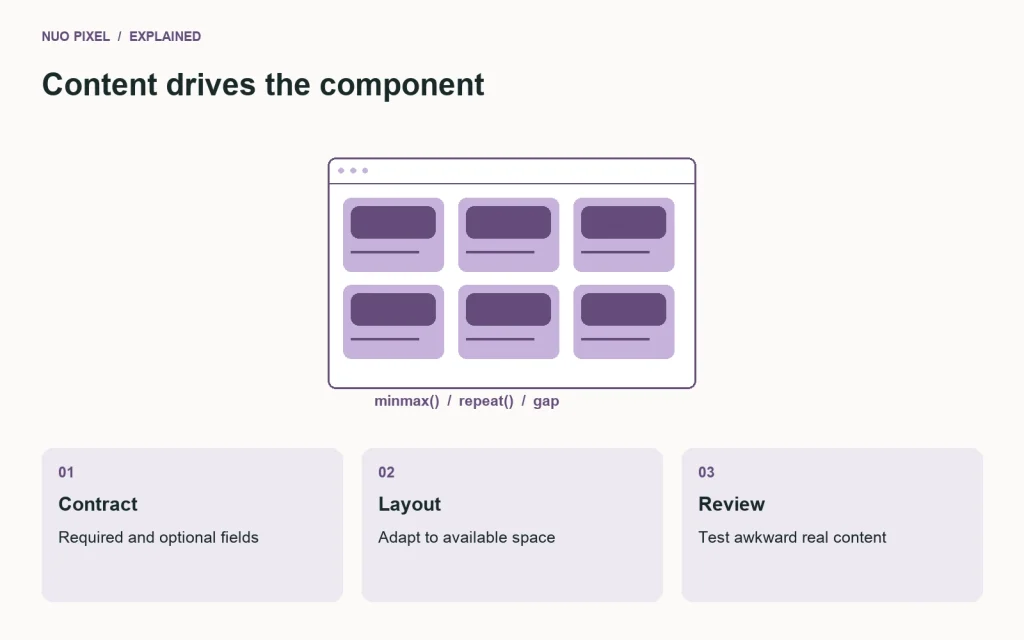
Use a grid that fits usable card widths into its container. Start with a sensible minimum, let columns grow, and keep a consistent gap. You can use explicit breakpoints when the design needs them, but avoid adding a new rule for every device name.
Check the container as well as the viewport. A card grid inside a narrow sidebar or an editorial layout has different available space from a full-width listing. A rule that works across a large page can still overflow when the same component is placed in a smaller region.
Test the transition between column counts. Resize slowly where three columns become two and two become one. Watch long headings and image edges during that transition. A component can look fine at the endpoints while becoming awkward in the widths between them.
MDN’s CSS Grid guide explains the track-sizing concepts behind responsive grids. Treat the companion code as a specimen to understand, not a magic line that removes the need to review real content.
Make the inside of the card flexible
A flex column can help arrange the card body so the reading action sits after the content and uses remaining space where appropriate. This is different from fixing the entire card to one height and hiding anything that does not fit.
Let the heading wrap. If a title is too long to communicate its subject clearly, edit the title as an editorial decision rather than using CSS to conceal its final words. An excerpt can be deliberately shortened, but the visitor should still understand what the article offers.
Use spacing to separate metadata, heading, excerpt, and action. Avoid making every item compete through size and weight. A quiet date or category can provide context without overpowering the title. The card’s hierarchy should remain clear when several cards sit together.
Keep the no-excerpt variant usable. If the title already explains the article and the listing intentionally omits descriptions, the component should not depend on an invisible excerpt area to align its action. Document the variant so future contributors do not add arbitrary spacer elements.
Write links that survive outside the visual context
A title such as “Prepare a Website Logo Package” is already a useful destination label. If you add “Read article,” include enough accessible context to distinguish it from the same phrase on neighboring cards. Avoid an entire page of identical generic link names.
Do not add a separate button merely because a design system contains a button style. Opening an article is navigation, so an anchor is the appropriate foundation. Visual emphasis can be applied to that link without changing its meaning into a form action.
Check keyboard focus visibility against the actual card surface and image. A focus outline that disappears into a border or gets clipped by an overflow rule can make navigation difficult even when the link technically receives focus.
Use hover effects as optional feedback rather than the only indication that an element is interactive. Touch users do not have the same persistent hover behavior, and keyboard users need their own visible state. A clear title link should remain understandable before an animation runs.
Test the edge cases deliberately
The companion workbench includes a longer title and a long path-like string. Add your own cases: no image, no excerpt, a very short title, an unfamiliar language, and a word that does not fit neatly. Inspect the component at narrow widths and with text enlarged.
Check that one awkward card does not force neighboring cards outside the container. Use sensible minimum-width behavior and wrapping for unpredictable strings. Keep the solution focused; a global rule that breaks every word aggressively can make ordinary text much harder to read.
Test the image failing to load. If it is decorative within a clearly labeled card, an empty alternative may be appropriate; if it carries meaningful information not otherwise present, provide an appropriate description. Choose the treatment by purpose rather than copying the same title into every alt attribute automatically.
Check the entire listing with one item, several items, and enough items to require pagination. The component and the listing work together. A beautiful card does not help visitors reach older articles if the next-page control is missing or repeats the first page’s content.
Keep the specimen honest about responsiveness
The width workbench changes the width of a local specimen frame. That is useful for inspecting layout behavior, but it does not simulate every property of a phone. Touch input, browser chrome, device pixel density, font rendering, and network conditions still need appropriate real-environment review.
Use the workbench to find problems early, then verify important cases on a real device or an appropriate browser setup. Do not present a narrow desktop frame as proof that all mobile behavior is finished.
Keep the specimen content fixed while comparing widths. If you rewrite the title between screenshots, you can no longer attribute the difference entirely to layout. Save representative content with the component so later changes can be assessed against the same examples.
For Nuo Pixel Solutions, this makes the resource useful beyond the initial blog update. The same component review can support a resource listing, a service card, or another small content collection, provided its fields and interactions are defined for that task rather than copied without thought.
Integrate the component with WordPress carefully
Use the main query appropriately for a standard blog listing, and preserve pagination. If a custom query is required, make the pagination context explicit and restore global post data afterward. Avoid rendering every post simply because the initial database contains only a few entries.
Use the featured-image and attachment APIs rather than hard-coding a full-size URL into every card. Register useful image sizes and review the output markup. A sensible component design can still become inefficient if its template bypasses the CMS’s responsive delivery features.
Escape output according to its context. A title in plain text, a destination URL, and an attribute value need appropriate handling. Keep editorial content separate from the template’s structural decisions so a routine title update does not require editing PHP.
Check the empty listing and search-results states. “No articles yet” is different from “No results match this query.” A useful message and route forward are part of the listing experience, even though no card is shown in that state.
Review the component as a reusable agreement
Document the required fields, optional variants, image ratio, heading context, link behavior, and important states in the README. Include the awkward content examples and the checks that matter. The next contributor should not need to infer all of this from a screenshot.
When a new page needs a change, decide whether it belongs in the shared component or a named variant. Avoid accumulating page-specific overrides that silently change the card’s contract. A small, understandable component is easier to maintain than a universal one with exceptions nobody can explain.
The result should help editors publish and visitors choose. If a card remains clear with real titles, missing optional fields, narrow containers, and ordinary interaction states, it is doing useful work. That dependability matters more than perfect alignment in a screenshot containing only the shortest sample content.
Check the package outside the original project
Open the standalone specimen from a fresh folder and follow its README. Confirm that its stylesheet, illustration, and behavior do not depend on an undocumented path on the developer’s computer. Then use the same HTML with a different title and excerpt. If the layout needs hand-tuned offsets for the second example, revisit the component rather than documenting those offsets as normal editorial work.
Keep a short change record when the contract evolves. Adding a category link or a saved-item control can affect keyboard order, linked areas, and spacing. Review those changes as interaction decisions, not merely as another small element to fit inside the existing rectangle. This gives the card a clear path to grow while preserving the simple reading task it began with.
Resources for this guide
Need help applying this to a website? Discuss the project with Nuo Pixel Solutions.
Continue learning
Want a Custom Designs for Your Brand?
Let NUO PIXEL craft design that defines your brand’s identity — creative, memorable, and made to stand out.
Contact NUO PIXEL Today