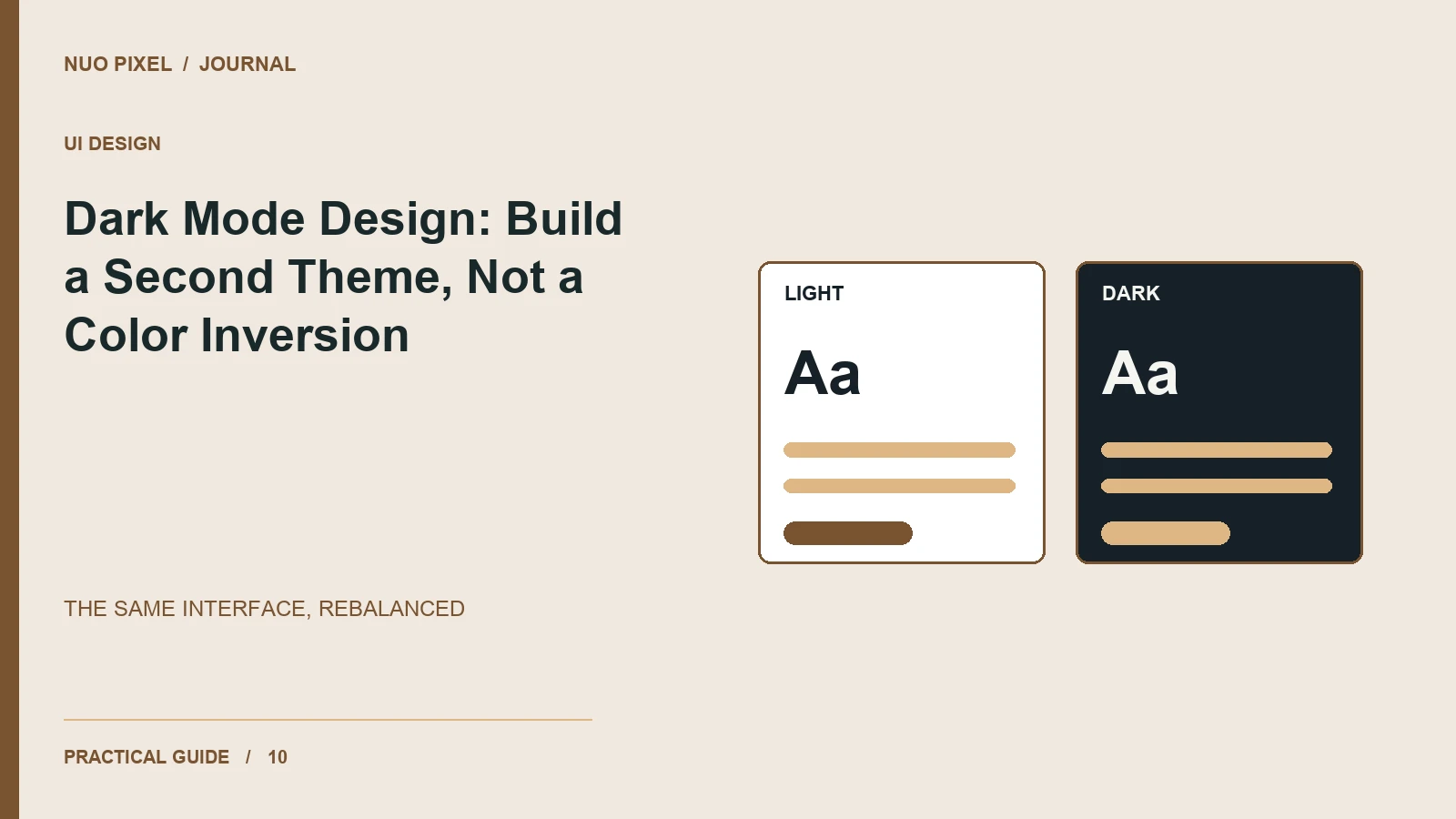
Dark mode changes the relationship between surfaces, text, images, and interface states. Simply reversing black and white often leaves bright borders, unreadable muted text, and logos designed for a completely different background.
Treat dark mode as another supported presentation of the same interface. Visitors should recognize the same hierarchy and controls, with colors chosen for the new surfaces rather than mechanically inverted.
Start with semantic roles
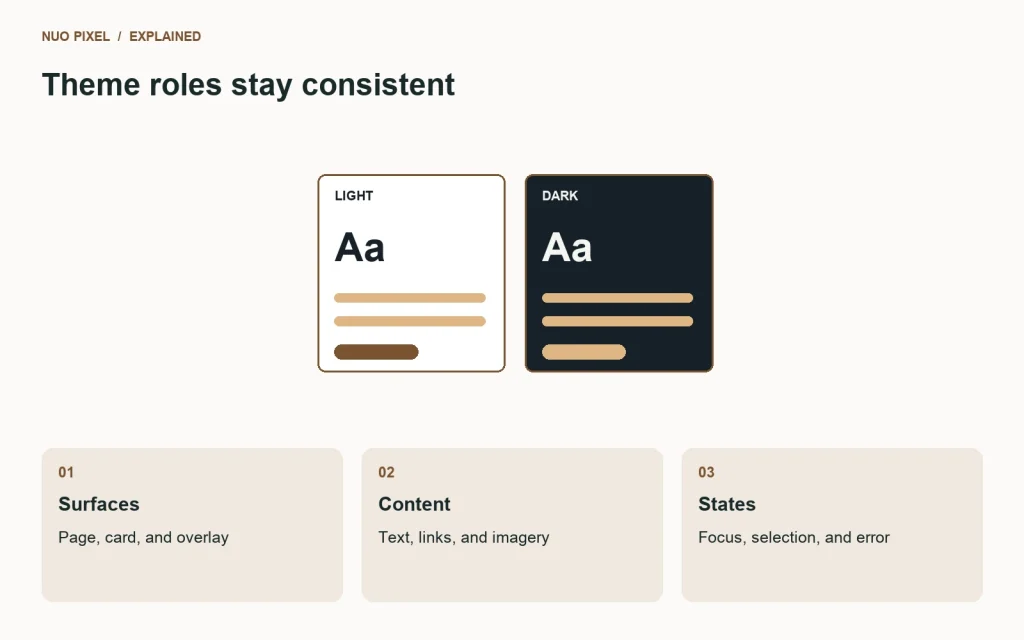
Define roles such as page surface, raised surface, primary text, muted text, border, and link. Keep those names stable across themes. A card should request a surface role instead of containing a hard-coded white background that you later need to override.
A minimal example looks like this:
:root {
  color-scheme: light;
  --surface: #fff;
  --text: #172128;
}
@media (prefers-color-scheme: dark) {
  :root {
    color-scheme: dark;
    --surface: #172128;
    --text: #f0f4f3;
  }
}
body { background: var(--surface); color: var(--text); }
CSS custom properties provide a reusable mechanism for theme values; MDN documents their behavior. The two roles above demonstrate the mechanism, but a production interface will need additional roles and component review.
Recheck the visual hierarchy
Use controlled differences between surfaces to separate a card from the page. Large, bright shadows can look unnatural on a dark background, so review elevation rather than copying light-theme effects unchanged. Borders should clarify boundaries without making every component compete for attention.
Inspect photographs, illustrations, and logos. Some need a different asset variant or an intentional surrounding surface. Avoid filters that change product colors or distort a client’s brand mark merely to make an image fit.
Include every interactive state
Review links, focus rings, selected tabs, disabled buttons, and validation messages. A muted text color that worked in the light theme may become too faint in the dark theme. A chart also needs its labels, grid, and series colors checked together.
If you provide a manual theme switch, make its current state understandable and decide how it interacts with the operating system preference. Do not silently reset a visitor’s explicit choice during ordinary navigation. Check that a stored preference is applied without a distracting flash when possible.
Test a complete journey
Read an article, open the mobile navigation, and submit a form with an intentional error in both themes. Review browser-native controls as well as custom components. Theme support is incomplete if the homepage looks good while the contact form becomes difficult to read.
Try this: create a theme review sheet containing one paragraph, one card, a form field, and all button states. Approve the combinations there before applying dark mode across the entire site.
Continue learning
Want a Custom Designs for Your Brand?
Let NUO PIXEL craft design that defines your brand’s identity — creative, memorable, and made to stand out.
Contact NUO PIXEL Today