The most useful answer to “Which image format is best?” is another question: what does the image need to preserve? A photograph, a logo on a transparent background, and a screenshot of small interface labels do not lose information in the same way. Choosing a format because it produced a small file once is an unreliable way to prepare an entire website.
This Nuo Pixel Solutions guide gives you a repeatable comparison process. It uses five kinds of artwork, keeps the dimensions consistent, and asks you to inspect the result at its real display size. The accompanying export sheet is intended to make your decisions explainable. It is not a promise that one setting will produce the smallest acceptable image on every website.
We will compare photographic or satellite imagery, an interface screenshot, transparent artwork, a smooth gradient, and a text-heavy graphic. Those examples expose different weaknesses. If you only test a landscape photograph, you may miss the damage a similar export causes around a tiny letter or a sharp logo edge.
Start with the job the image performs
Write down where the image will appear before you open an export dialog. A blog card needs to be recognizable at a small size. A diagram must preserve its labels. A product picture may need viewers to inspect texture and finish. A brand mark needs clean edges and an appropriate background. These are different acceptance criteria, even when all four assets appear on one page.
Next, identify the actual display dimensions. If an image is shown inside a narrow article column, exporting a much wider file can add transfer without adding visible detail. However, exporting exactly one low-resolution size for every device can look soft on a high-density display. Plan suitable size candidates and let the website deliver them responsively.
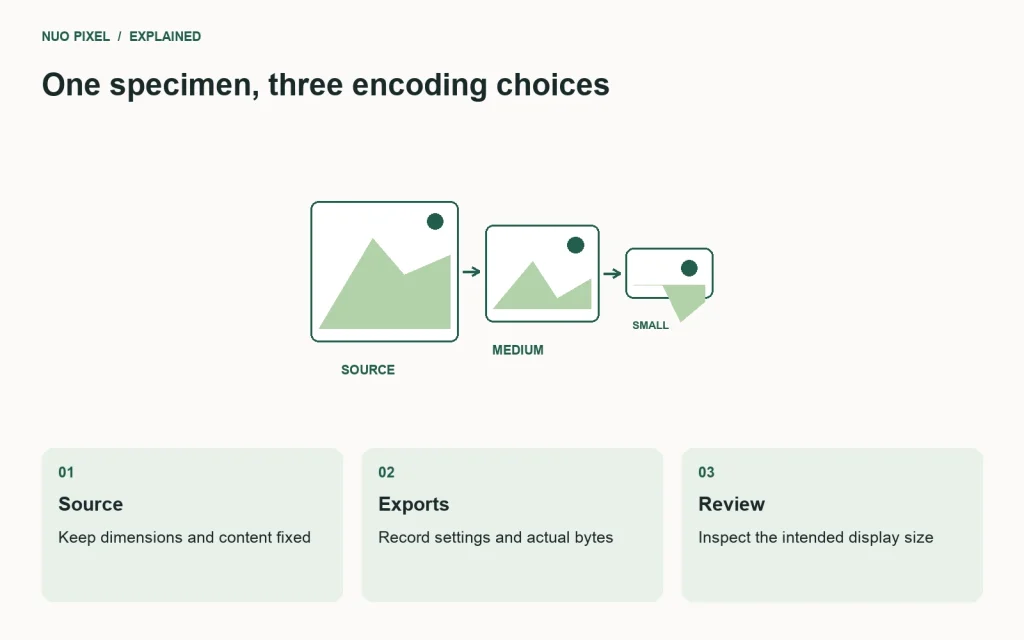
Keep format selection separate from cropping. If you crop a screenshot differently for each candidate, you cannot attribute the change in appearance or file size to the encoding alone. The source dimensions, crop, and content should stay fixed while you compare the formats. Later, you can make a separate decision about responsive crops.
Understand the practical differences
PNG is often useful when exact pixel values, flat colors, or transparency matter. JPEG is commonly used for continuous-tone images, but it does not carry an alpha channel. WebP can be used in lossy or lossless modes and supports transparency. These capabilities describe what the formats can do; they do not establish which output is appropriate for your particular artwork.
The Pillow image-format documentation is a reference for the encoder options used by the companion comparison. Encoder settings and software versions matter. A quality value in one format is not a standardized visual-quality measurement that can be compared directly with the same number in another format.
That last point causes a lot of misleading comparisons. Exporting JPEG at quality eighty and WebP at quality eighty is a useful starting experiment, but it is not proof that the files have equal visual quality. Inspect the outputs and adjust them until they meet the same practical standard for the intended use.
Prepare five deliberately different samples
Choose one detailed image with natural texture. A photograph you own or an appropriately credited public image works. If you use a satellite composite instead, identify it as a composite rather than describing it as a single camera photograph. Keep source attribution with the experiment and do not imply that a third-party image represents a Nuo Pixel client project.
Create a screenshot containing a navigation bar, a few small labels, an icon, and a panel boundary. Include both light and dark areas. A screenshot is a useful test because ringing or smudging around text can be more noticeable than a similar amount of change in a cloud or a tree.
For transparency, use a simple piece of original artwork with a curved edge and some partially transparent pixels. Preview the result on white, dark gray, and a colored surface. This reveals whether an export introduced a matte color or an unexpected solid background.
For the gradient, create a broad transition with enough subtle changes to expose banding. For the text graphic, use several font sizes and a short line of high-contrast lettering. Keep both specimens simple enough that you can describe what changed without relying on a complicated composition.
Run a controlled export
Store the originals in a separate folder and never overwrite them during the comparison. Give each output a filename that records the sample, dimensions, format, and relevant setting. A name such as interface-1200-webp-q82.webp is more useful in a review than final-final-small.webp.
Record the encoder and version. Export the candidates at identical dimensions, then record their actual byte sizes. If you change metadata retention, resizing method, or color handling, put that in the notes. Those choices can affect the result and should not be hidden behind a broad claim about the format.
For a transparent source exported to JPEG, choose the background deliberately and record it. Flattening onto white is a design choice, not a transparent JPEG feature. If the website later places that file on a dark card, the white rectangle is an expected consequence of the export rather than a mysterious browser bug.
Use the accompanying worksheet to keep the experiment organized. Its most important fields are not the quality number and file size; they are the intended display context and the reason you accepted or rejected the result. Those notes let another person reproduce your decision instead of guessing what “looks fine” meant.
Inspect at normal size before zooming
Open each output at the size visitors will actually see. First ask whether it performs its job. Can you read the labels? Does the product detail remain useful? Is the transparent edge clean on the intended background? A file that fails these checks is not a successful optimization, however impressive its size reduction appears.
Then inspect a small crop at a higher zoom to understand the artifacts. Look for halos around edges, blocks in detailed regions, muddy text, and stepping in smooth gradients. The enlarged view helps explain a defect, but it should not become the only basis for rejecting an otherwise suitable web image.
Keep the source beside the outputs and avoid relying on memory. Human visual comparison is easier when the same detail appears in the same position. If you use a slider, make sure it compares equivalent crops. If you use a contact sheet, label every candidate so a reviewer does not accidentally prefer the original while thinking it is an export.
Review the transparency specimen on more than one background. A pale fringe can disappear against white and become obvious against charcoal. The solution may involve the source artwork, the edge treatment, or the chosen background, not merely another pass through the compressor.
Interpret each sample separately
For the detailed image, compare texture and smooth tonal transitions. Natural variation can hide some compression artifacts, but important details should not dissolve. A small image used as atmosphere has a different threshold from an image used to judge a material finish. State that distinction in the review.
For the screenshot, prioritize the small labels and straight boundaries. If the export blurs a setting name or creates a distracting fringe around dark text, consider a lossless candidate or a different size. Do not “solve” the problem by enlarging the screenshot in the page if that makes the surrounding layout worse.
For transparent artwork, verify that the output retains the intended transparency and color around the edge. For gradients, inspect the transition at ordinary viewing conditions rather than assuming your monitor shows every subtle band. For text graphics, consider whether the words should be real HTML text instead of being embedded inside an image at all.
That final question can be more valuable than any format comparison. If an infographic contains the only copy of essential instructions, a smaller file does not make the instructions more accessible. Keep an equivalent explanation in the article, and use the image to reinforce relationships that benefit from a visual representation.
Decide on a delivery strategy
Once you have acceptable candidates, compare their sizes and operational costs. A slightly larger file can be a reasonable choice if it keeps a workflow simple and preserves the information readers need. Conversely, an unnecessary full-resolution original on every card can be wasteful even if the chosen format is technically appropriate.
Generate responsive variants from the approved source. Make the image dimensions predictable in the page so space is reserved before the file arrives. Check what your WordPress theme actually outputs: a sensible export workflow can still be undermined by a template that always requests the original image or declares an inaccurate display width.
Use the Nuo Pixel image converter for a convenient browser-based conversion when it suits the input. For a repeatable publishing pipeline, retain the source files, settings, and output records as well. A one-time download and a documented batch process serve different needs.
Avoid replacing every existing image immediately. Start with a few representative pages, confirm that filenames and content references remain correct, and then expand the change. Check older posts as well as newly published content; an image optimization that breaks a historic diagram is a regression, not a complete success.
Common mistakes worth catching early
A quality slider cannot correct an unsuitable crop. A smaller file extension does not prove a file is smaller. A renamed extension does not convert the underlying format. A transparent checkerboard visible in an exported image may be baked into the pixels rather than representing an actual alpha channel. Check the file itself instead of assuming the filename tells the whole story.
Repeatedly opening and saving an already compressed image can accumulate damage. Return to the retained original when you need a different output. If a colleague sends a new source, rerun the relevant comparisons rather than copying the old file-size claim into a new article without testing it.
Also separate file-size measurements from loading-speed claims. A smaller transfer can help under appropriate conditions, but a local export comparison does not measure a production page’s loading experience. Network behavior, caching, server response, image discovery, and competing requests all affect what visitors experience.
When Nuo Pixel Solutions presents a performance result, the useful record is the complete context: what changed, where it was tested, what was measured, and what remains uncertain. The same standard belongs in a small image comparison. Clear limits make the result more useful, not less impressive.
Turn the comparison into a repeatable habit
Choose a handful of samples that represent your normal publishing work and keep them as a review set. Run them when you change export software or your image-processing settings. You do not need to re-litigate every decision for every blog post, but you should know when a change in the pipeline deserves another look.
Write a short rule for each image role after the review. For example, require a visual check for text-heavy graphics, a background check for transparent artwork, and an appropriate responsive candidate for article covers. Keep the rules concrete enough that a new contributor can follow them without reconstructing the entire experiment.
The outcome should be a collection of defensible choices, not a declaration that one format has won forever. Your website contains different kinds of information. Giving each one the right treatment is how visual quality and efficient delivery become part of the same publishing process.
Keep a short decision record with the asset
Before handing an image to another contributor, add a note stating its intended role, approved crop, retained source, and accepted output. Include any limitation that could surprise the next person. A transparent mark flattened onto a white background should be identified as such; a diagram approved only at a wide display size should not quietly become a tiny card thumbnail.
This record need not be complicated. A few sentences beside the output are often enough to prevent repeated exports and lost context. When the page design changes, revisit those assumptions before reusing the same file. The process is complete when another person can understand the choice, reproduce it from the source, and recognize when a different choice is needed.
Resources for this guide
Need help applying this to a website? Discuss the project with Nuo Pixel Solutions.
Continue learning
Want a Custom Designs for Your Brand?
Let NUO PIXEL craft design that defines your brand’s identity — creative, memorable, and made to stand out.
Contact NUO PIXEL Today