A responsive component should behave sensibly between the screenshots in a design presentation. A title can wrap awkwardly at an intermediate width, a long path can push a card outside its container, or a fixed-height area can conceal text only after a real article arrives.
The Nuo Pixel Solutions responsive preview workbench gives you a focused way to inspect those changes. It displays a fixed local article-card specimen inside a resizable frame. You can adjust the frame width, examine the same content at different sizes, and connect the result with the accompanying card tutorial and source files.
The tool does not emulate an entire phone or load an arbitrary external website. It is a layout specimen with a deliberately narrow purpose. That makes it useful for finding content and sizing problems while keeping its limits understandable.
Know what changes when you move the control
The range control changes the specimen frame’s width between the values shown by the tool. The card content stays the same. This isolates one useful variable: how the layout responds when the available horizontal space changes.
The surrounding workbench remains part of the ordinary browser page. When the selected frame is wider than the available workbench panel, the panel can scroll horizontally. That is intentional; squeezing the frame to the outer panel would prevent you from inspecting the selected width.
The displayed width is measured in CSS pixels. It is not a statement about a device’s physical dimensions or pixel density. A desktop frame can help investigate CSS layout without reproducing every characteristic of a phone, tablet, or different browser environment.
Start with the same content at several widths
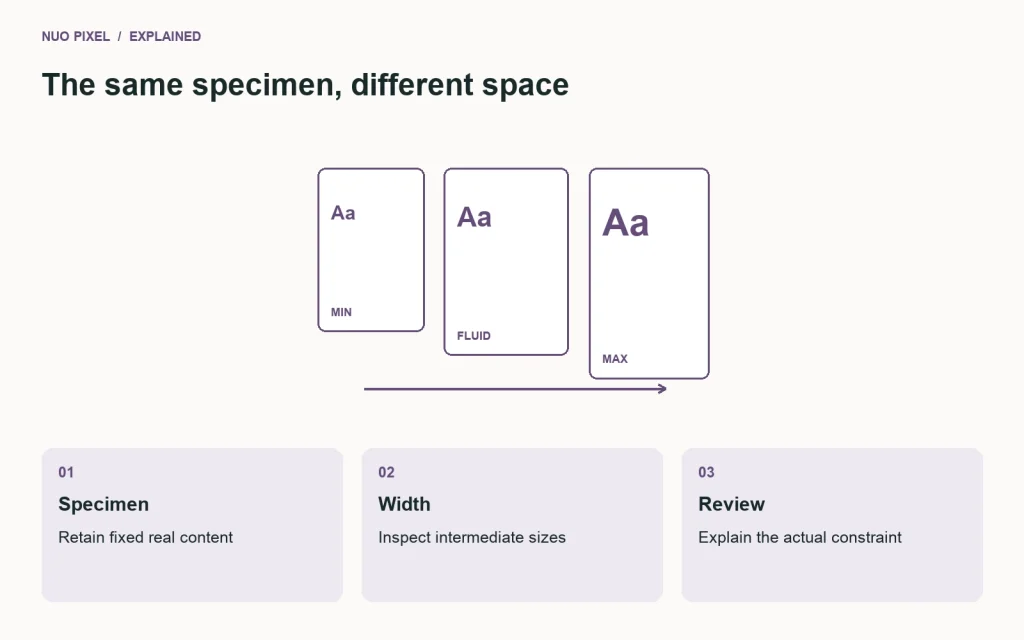
Open the specimen at a narrow width and read the title, excerpt, and link. Then increase the width gradually. Watch where lines break, how the image relates to the text, and whether the card remains within its container.
Do not begin by changing the content to make the narrow view look cleaner. The point is to expose how the component handles the supplied title and longer path-like string. If you rewrite the text between views, the comparison no longer isolates layout behavior.
Use a few reference widths to keep notes understandable, but also move through the spaces between them. A component can look acceptable at two familiar device presets while becoming awkward just before its layout changes. The intermediate state is part of the real experience.
Keep a short observation rather than a vague judgment. “The final word becomes a line by itself at this width” is more actionable than “mobile looks bad.” Specific observations help identify whether the next change belongs in the content, typography, spacing, or layout rule.
Inspect the title as an editorial element
The title should explain the article’s subject and remain available when it wraps. A card that hides meaningful words merely to preserve a fixed height is making a visual decision at the expense of the visitor’s understanding.
Look for excessive line length at wide sizes and crowded wrapping at narrow sizes. The right response may involve the card’s maximum width, heading scale, line height, or editorial wording. Do not assume every awkward title can be solved by shrinking the font.
Check that the heading remains connected visually to the excerpt and action. Large empty gaps created by fixed dimensions can make the card feel disconnected, while overly tight spacing can make metadata and title compete. The specimen helps reveal those relationships as the available width changes.
For Nuo Pixel Solutions, a practical article title can be longer than a promotional slogan because it names a specific task. The component should accommodate that useful precision rather than forcing every guide into a short, vague label.
Review the image’s role and proportions
The specimen uses original geometric artwork with a defined wide ratio. It demonstrates how a cover can retain a predictable shape while the card changes width. The actual image content is intentionally simple so the layout can be inspected without relying on a third-party photograph.
When adapting the component, test real cover artwork too. A face, product detail, or text label can be cropped differently from the geometric specimen. A consistent ratio does not establish that every source image will survive the crop usefully.
Keep the article’s explanatory figures separate from its card cover. A diagram may need its full frame and readable labels. The listing’s crop rule should not be applied indiscriminately to every image in the reading layout.
Inspect the image failing to load and a legitimate no-image card. The workbench’s fixed specimen does not simulate those states automatically, so use the downloadable source and the card tutorial’s edge cases for that part of the review. A focused tool should identify what still needs another test.
Notice long strings before they break a real page
The specimen contains a path-like string to expose wrapping behavior. Long URLs, product codes, and unfamiliar technical terms can create different pressure from ordinary prose. A component needs a deliberate way to handle those cases without pushing the whole layout outside its container.
Use wrapping rules where they solve an actual problem. A global rule that breaks every word anywhere can make ordinary paragraphs difficult to read. Keep the treatment appropriate to the content type and review its effect on real sentences.
Code blocks have their own needs. A horizontally scrollable code region can be more useful than reducing every character until the snippet fits. A card excerpt should not become a container for an entire code sample; that information belongs in the article.
If the long content comes from user or external data, treat safe rendering separately from layout. A string fitting inside the card does not establish that it has been inserted safely. Use an appropriate text-rendering method when HTML interpretation is not needed.
Keep source order and interaction meaningful
The fixed specimen has a logical sequence: visual context, heading, description, and destination link. Inspect how that sequence remains understandable as the width changes. The component should not require a particular visual arrangement for the content to make sense.
Try keyboard navigation through the workbench and into its relevant controls. The width slider should be operable using normal keyboard behavior, and the link in the specimen should have a clear destination and visible focus treatment.
The frame is given a descriptive title so its purpose is understandable. It contains known local specimen markup, not arbitrary pasted content or a remote site. This keeps the workbench’s behavior more predictable and avoids turning a layout exercise into an unexplained third-party browsing surface.
A real component may have additional controls, such as category links or saved-item actions. Those need their own interaction review. Do not assume that adding another clickable element inside a working card preserves the same keyboard order and linked-area behavior.
Understand the difference between a frame and a device
The frame changes layout width, but it does not reproduce the phone’s software keyboard, touch behavior, browser controls, rendering engine, memory constraints, or connection. Use it to find layout problems early, then verify relevant behavior in appropriate real environments.
High-density displays can also affect which image candidates are useful. A width specimen alone does not establish that the delivered raster asset is adequate for every device. Inspect the responsive image markup and actual browser requests separately.
Text enlargement is another dimension. A component that looks good at a narrow width with default text can still fail when a person increases the font size or browser zoom. Include those conditions in the broader review instead of treating width as the only form of responsiveness.
Keep these limitations with any screenshots you share. A narrow frame image is useful evidence of a particular layout state. It is not evidence that every mobile task, network condition, and accessibility requirement has been tested.
Use observations to choose one change at a time
If the title is awkward, identify whether the problem is its wording, scale, available width, or spacing. Change one relevant factor and compare the same content again. This makes the result easier to explain than a collection of simultaneous visual adjustments.
If the card overflows, inspect the element responsible. A long string, a minimum-width rule, an image dimension, or a nested control can each create a different failure. Applying a broad overflow-hiding rule may conceal the evidence while leaving important content inaccessible.
If the card becomes excessively wide, consider a sensible maximum width or a different containing grid. A component does not need to occupy every available pixel to be responsive. It needs to use the space in a way that supports reading and the visitor’s decision.
Record the change and the states checked. A small note connecting the observed problem, adjustment, and verification helps the next contributor understand why the rule exists. Without that context, a later cleanup can remove an apparently arbitrary value that was solving a real content issue.
Take the specimen into your project deliberately
The companion source is intended to be understandable HTML and CSS. Read it before adapting it, identify the component boundaries, and map the visual values to your own system’s roles. Do not copy unrelated page-level styles into a production theme merely because they happen to make the specimen look correct alone.
Replace demonstration content with representative project material. Include a long title, a short title, an optional image, and the metadata your listing actually uses. Keep the examples as a review set so future changes can be checked against the same variation.
Review the containing page as well as the card. Grid gaps, content width, pagination, and the main heading affect the listing’s usability. A component that works alone can still be placed in a layout that makes the collection difficult to browse.
For WordPress, use the featured-image and attachment workflow appropriately and preserve the query’s pagination context. The responsive specimen explains layout, not the complete CMS integration. Connect it to the card tutorial for the additional content and template decisions.
Keep the workbench useful as the site grows
A small fixed specimen is easier to review than a tool that tries to simulate every website automatically. Add new specimens when a real pattern needs them, and label what each one demonstrates. Avoid making the controls so elaborate that reviewers spend more time configuring the tool than inspecting the component.
If the component changes, update the specimen and its source package together. A screenshot, live example, and download that show different versions create the same kind of ambiguity the workbench is meant to reduce. Keep a clear relationship among them.
Nuo Pixel Solutions can use this resource to make responsive design discussions more concrete. Instead of debating whether a page feels mobile-friendly, the team can point to a width, a piece of real content, an observed behavior, and a proposed correction.
The useful result is a component that survives ordinary variation without requiring editorial workarounds. Test the same content, identify the actual constraint, make an explainable adjustment, and verify the wider journey afterward. That process is more dependable than collecting attractive screenshots at a few convenient sizes.
Keep one comparison note with the specimen
Choose a narrow, middle, and wider frame setting and record what you inspected at each. The note can describe title wrapping, excerpt readability, image proportions, long-string handling, and focus visibility. It should identify the specimen version so a future screenshot can be compared with the same content and styles.
If you find a problem between the reference widths, add that condition to the note. Do not round it away simply because it is not a familiar device preset. A real browser can occupy that intermediate space, and the component’s rules should still produce a useful result there.
After an adjustment, repeat the relevant views and one broader page check. A change that improves the narrow card may affect spacing in the wider listing or alter the relationship between cards with different title lengths. The specimen is a focused aid, while the containing page remains part of the product.
This small record gives the workbench continuity. Another contributor can see the content, condition, and reason behind a rule instead of inheriting a collection of unexplained dimensions. That is how a simple preview becomes useful project knowledge rather than one more temporary screenshot.
Resources for this guide
Need help applying this to a website? Discuss the project with Nuo Pixel Solutions.